 Redact
How to check a photo's metadata on Android
Before you send a photo, it is worth knowing what it says about you. Here is how to see every hidden field, including the GPS location, without uploading the photo anywhere.
The quick look: your gallery app
Most gallery apps have an info or details button (often an i icon, or a swipe up on the photo) that shows the date, size and sometimes a map. It usually shows only a few fields, and may show a location your gallery estimated rather than what is actually stored in the file.
The full picture: a metadata viewer
To see everything stored in the file, use a viewer that reads the EXIF data directly. Avoid websites that ask you to upload the photo: that hands the very data you are worried about to a stranger's server.
Redact reads it on your phone:
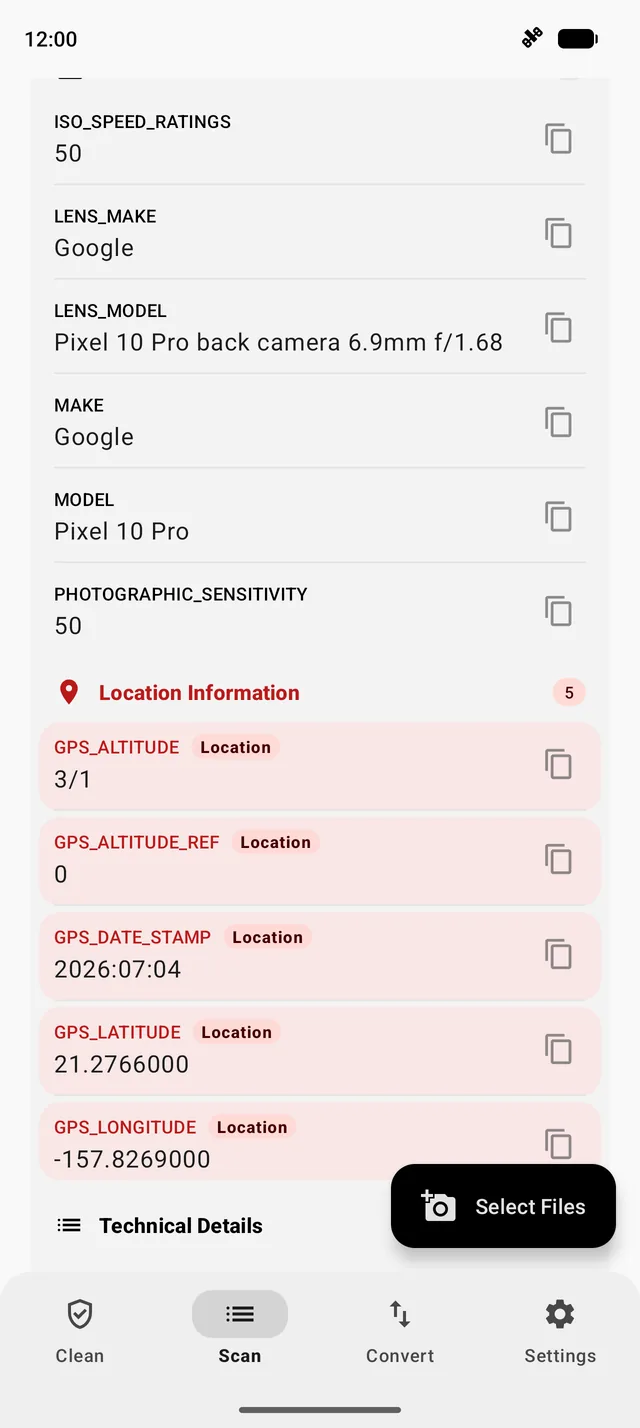
- Open Redact and go to Scan, then pick the photo or video. Or, from your gallery, tap Share and choose Scan with Redact.
- Read the list. Rows marked Location show where it was taken; Make and Model show your phone; the date fields show when.
- Type in the search box to filter (for example
gpsorcamera), copy a value, or tap Clean This File to remove the metadata.
Why don't I see a location?
Either the photo has none (the camera's location setting was off, or an app already removed it), or Android is hiding it. Android only lets apps read the GPS fields in your photos if you grant them the photo-location permission; Redact asks for it, and it is optional.
Found something you don't want to share? Here is how to remove it.